Alerts
Send alerts via SMS
Paid OnlineOrNot plans include SMS credits based on your plan's check allowance. No Twilio account required.
If you need more SMS messages than your plan includes, you can connect your own Twilio account.
Add your phone number
-
Click Settings in the navigation menu
-
Enter your phone number
-
Click Save
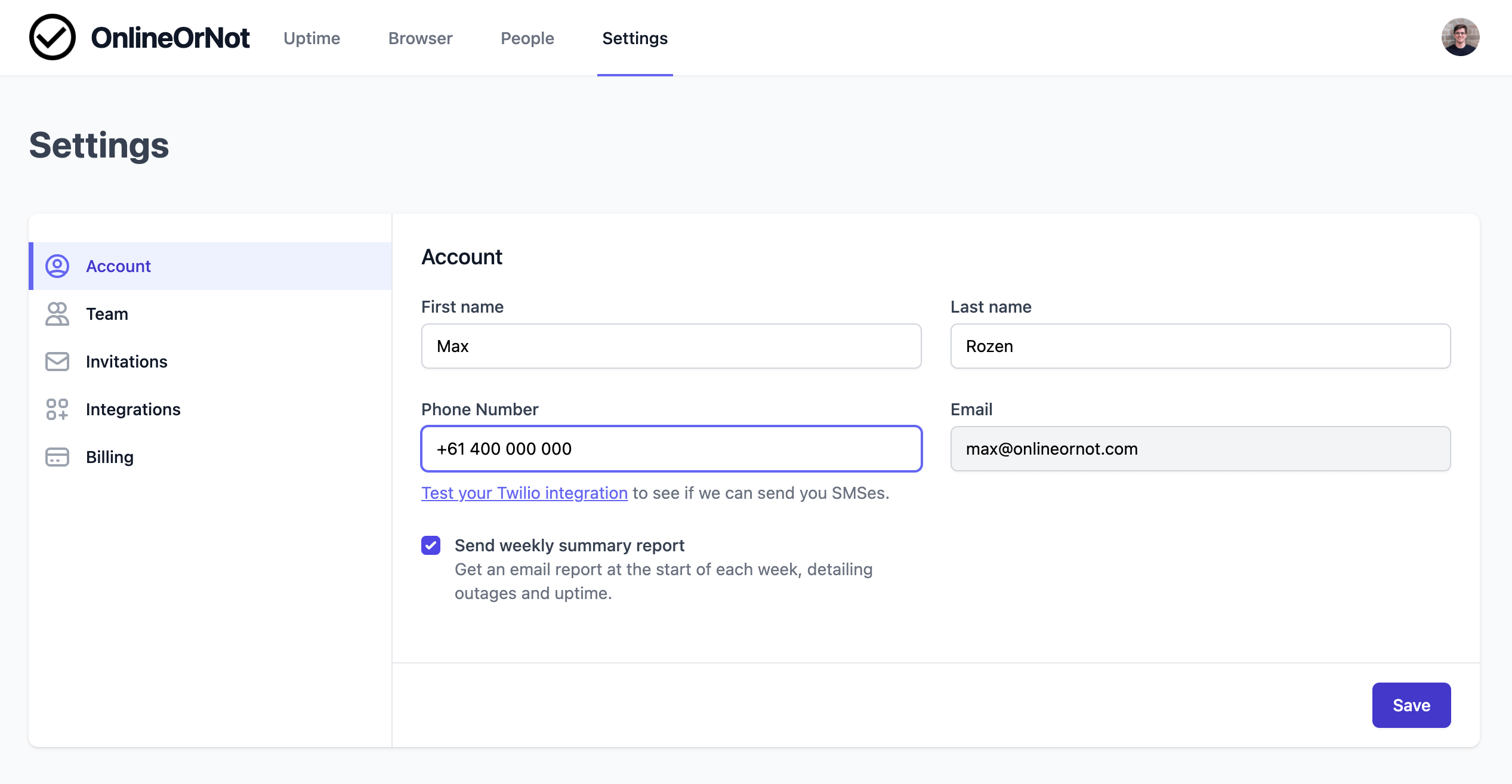
Each team member who wants SMS alerts adds their own phone number in their settings.
OnlineOrNot sends one SMS when a check goes down, and another when it comes back up.
Note: SMS alerts are only sent for high priority checks.
Connect your own Twilio account (optional)
If you need more SMS messages than your included credits, connect your own Twilio account:
-
Click Settings in the navigation menu
-
Click Integrations
-
Click Twilio
-
Click Connect to Twilio
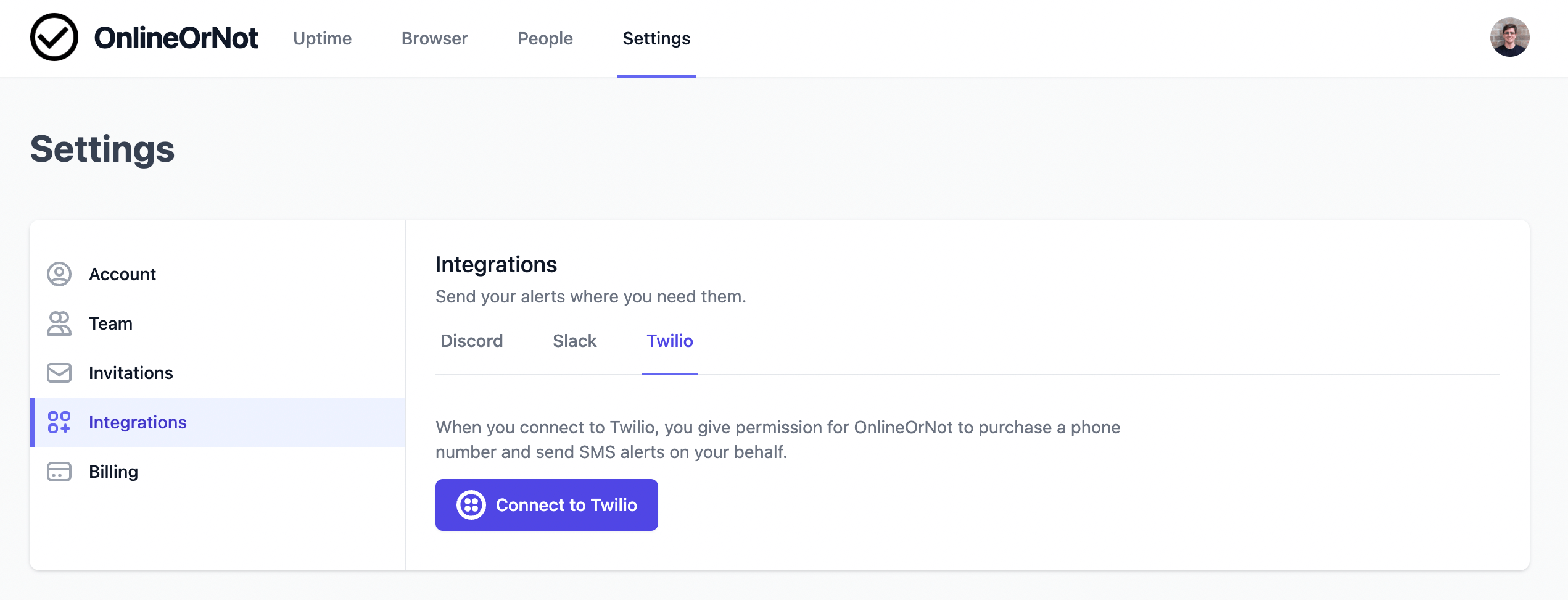
-
Accept Twilio's permission screen
OnlineOrNot will automatically purchase a phone number in your Twilio account (~$1/month). All SMS messages will be charged to your Twilio account—pay only for what you use.
Test the integration
After connecting, you can test your setup:
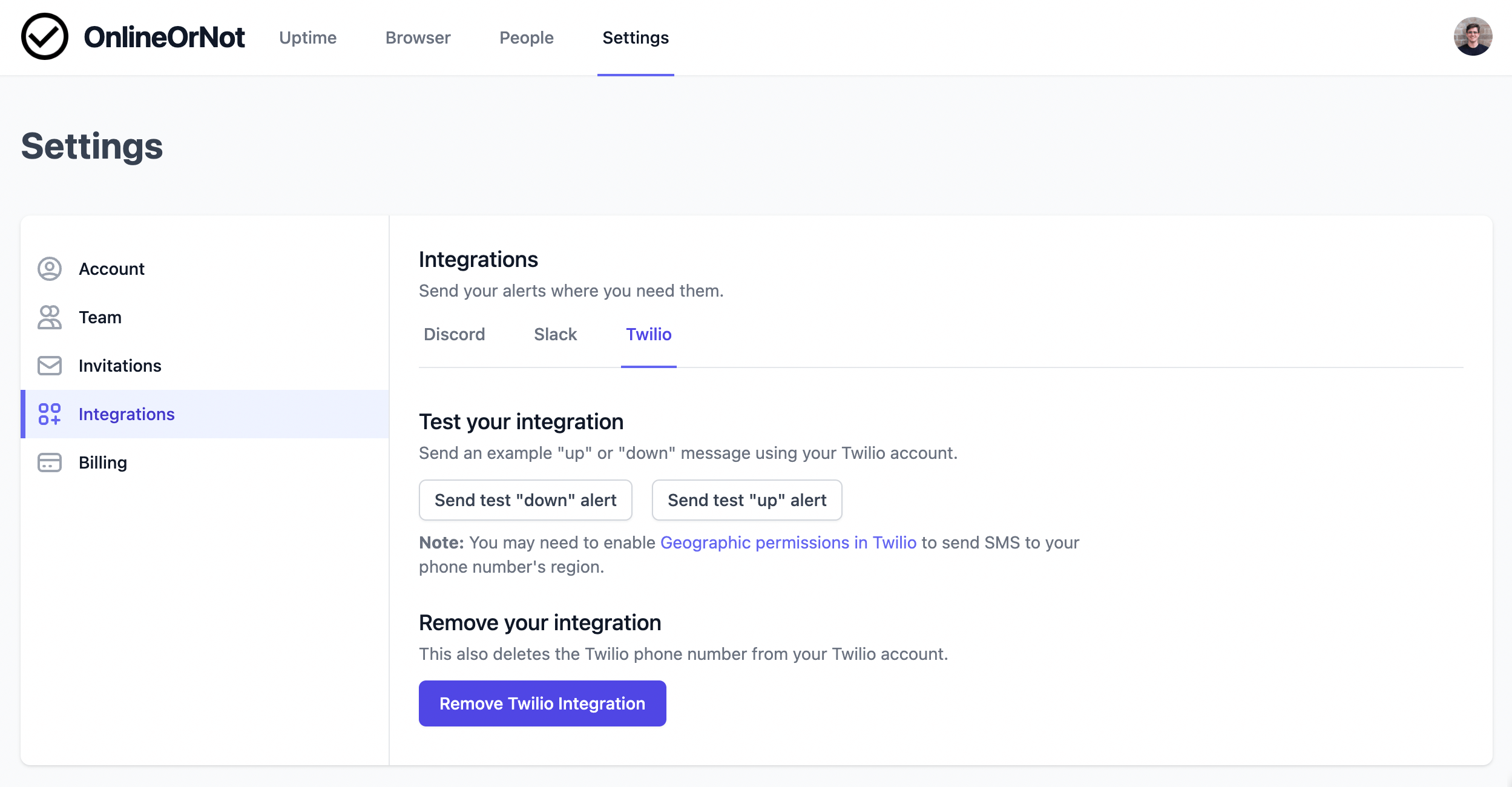
Test messages look like:
[OnlineOrNot TEST] Example.com is DOWN.
[OnlineOrNot TEST] Example.com is UP.
Tip: Save the Twilio phone number as a contact. This lets you customize the ringtone and receive alerts even in Do Not Disturb mode.
Geographic permissions
If your phone number is outside Twilio's default allowed regions, update your geographic permissions in Twilio.
Remove the integration
- Click Settings > Integrations > Twilio
- Click Remove Twilio Integration
This releases the phone number OnlineOrNot purchased.
Note: Twilio charges immediately for phone numbers. Rapidly adding and removing the integration will increase your Twilio bill.