Get Started
Getting Started with OnlineOrNot
This tutorial walks you through creating an OnlineOrNot account and setting up your first uptime monitor. By the end, you'll have a working monitor that alerts you when your website goes down.
Time required: 5 minutes
Step 1: Create your account
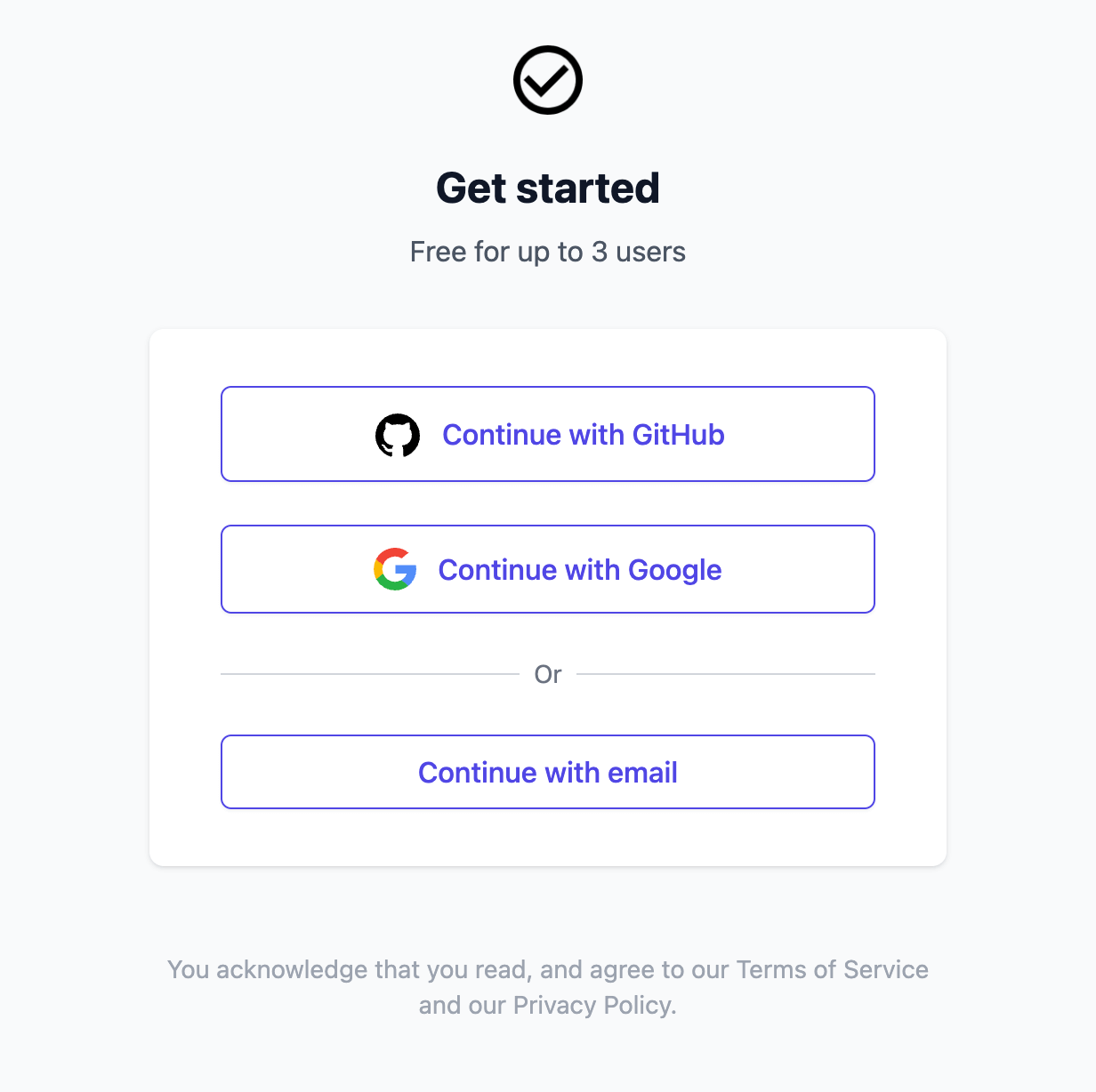
Go to onlineornot.com/get-started to create your account.
You can sign up using:
- Email (we'll send you a magic link - no password needed)
- GitHub
If you chose email
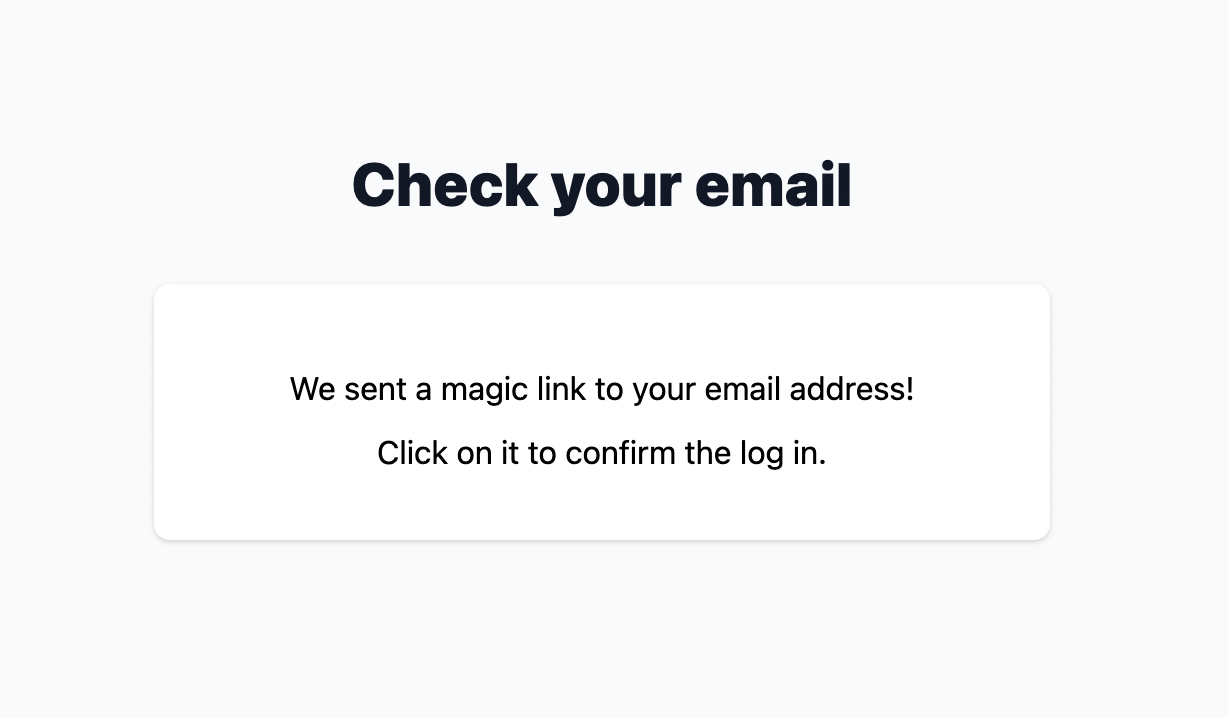
After entering your email, check your inbox for a magic link:
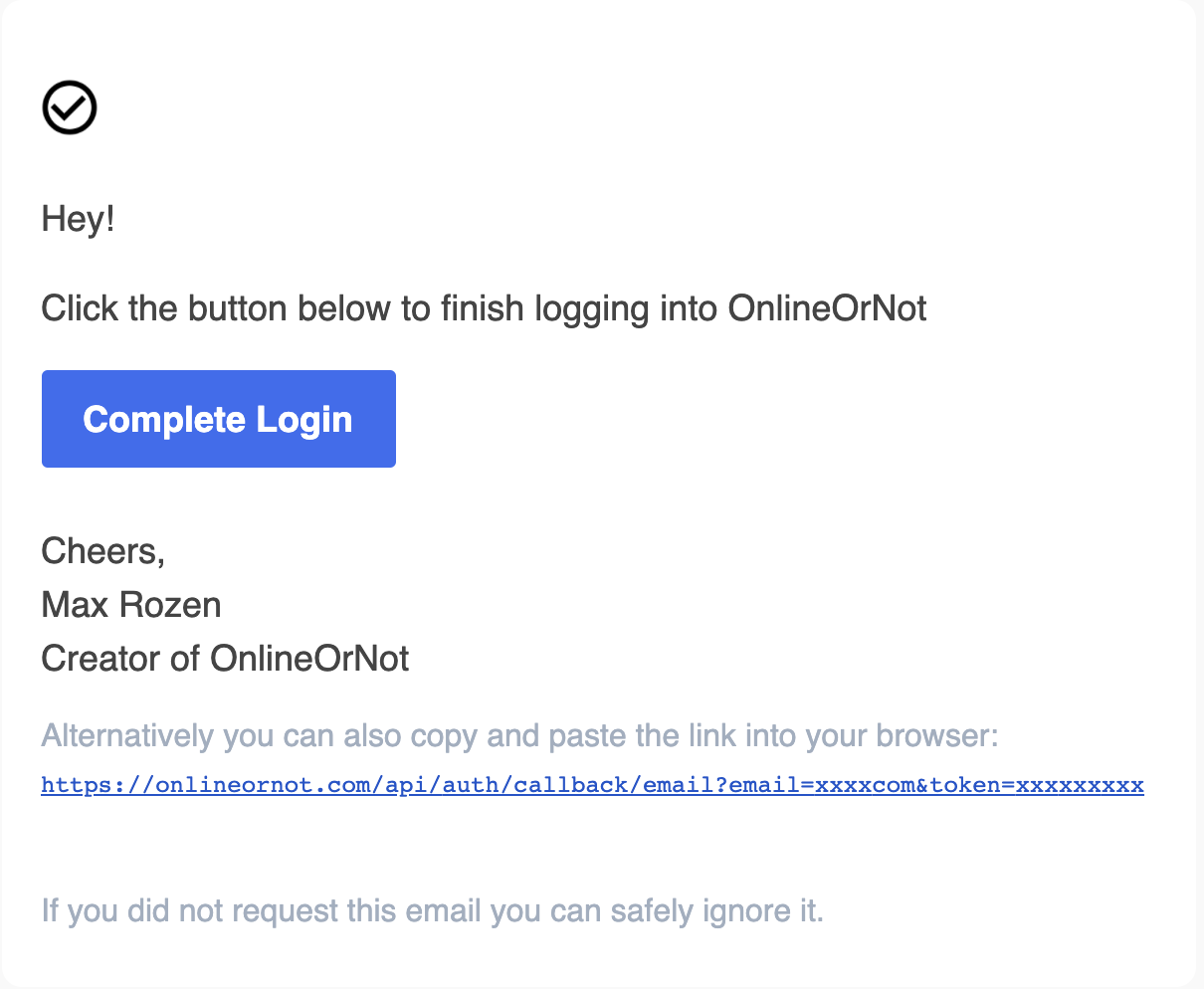
Click the link in the email to log in:
Step 2: Add your first uptime check
Once logged in, you'll land on the Uptime dashboard. Since this is your first time, the list will be empty.
Click the Add Uptime Check button and enter the URL you want to monitor:
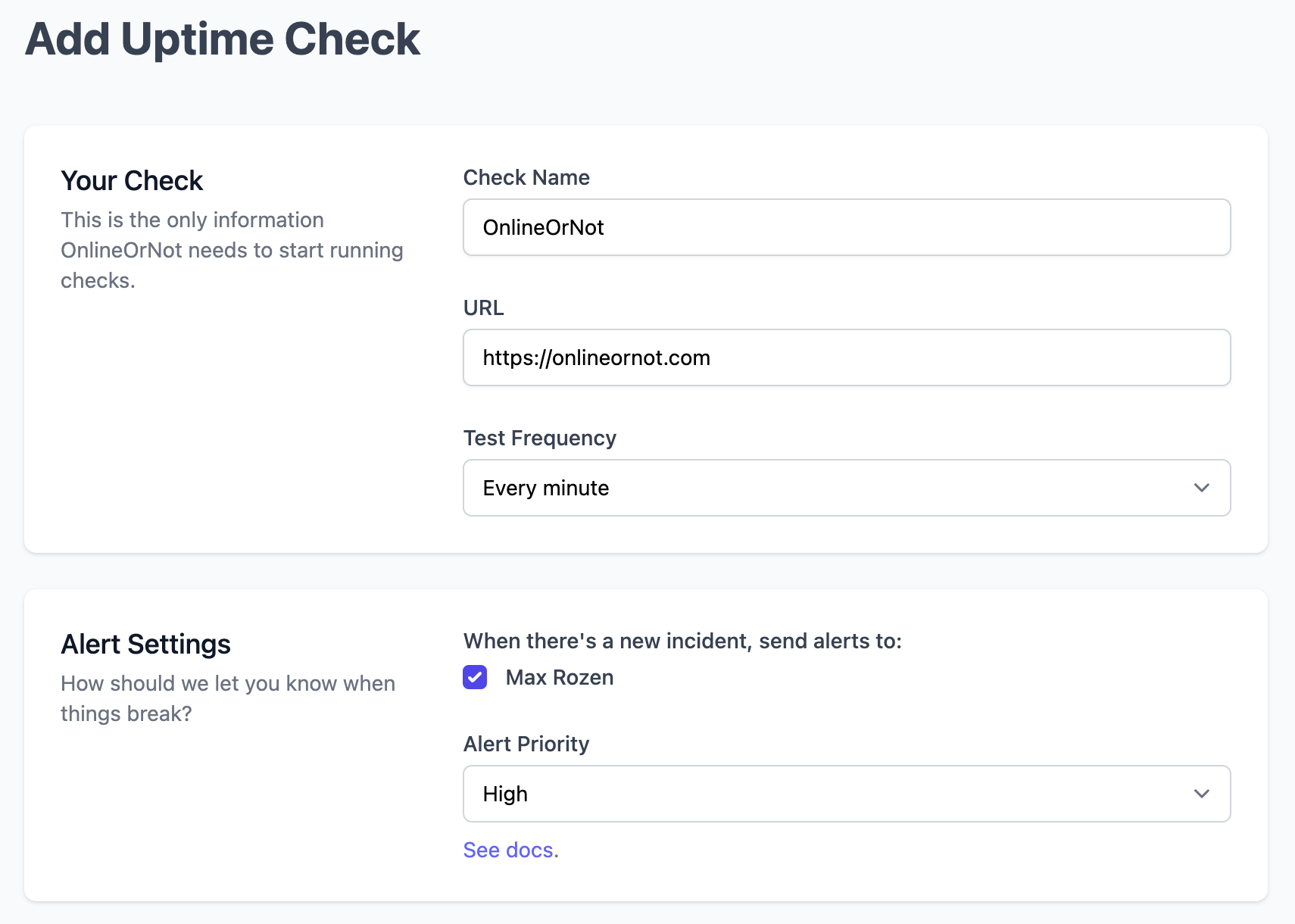
The default settings work well for most websites:
- Check interval: Every 3 minutes
- Alerts: Email notifications enabled
- Regions: Checked from multiple locations worldwide
Click Save to create your check.
Step 3: Verify it's working
After saving, you'll be redirected to your list of monitors. Your new check will show a "PENDING" status while OnlineOrNot runs the first test.
Within a minute or two, you should see a green "UP" status:
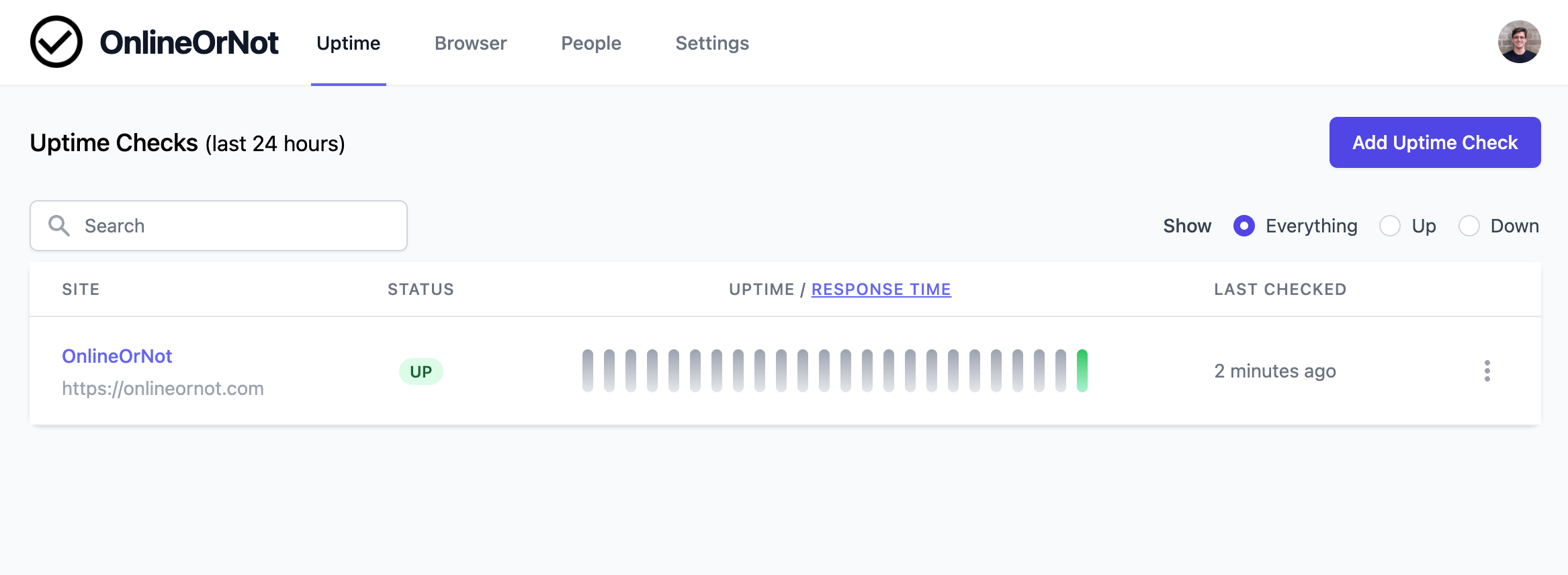
You now have a working uptime monitor. OnlineOrNot will email you if your site goes down.
What's next?
Now that you have your first monitor running, here are some ways to extend your setup:
- Add more monitors - Monitor your API, admin panel, or other critical URLs
- Set up Slack/Discord alerts - Get notifications in your team's chat (Slack, Discord)
- Create a status page - Show your customers the status of your services (Create a status page)
- Monitor your cron jobs - Get alerted when scheduled tasks stop running (Monitor cron jobs)
Troubleshooting
My check shows "DOWN" but my site is working
This is called a false positive. Common causes:
- Firewall blocking OnlineOrNot - Add our User Agent to your allowlist
- Cloudflare Bot Fight Mode - See Cloudflare Support for configuration steps
- Rate limiting - Some sites rate-limit frequent requests
Need help? Contact us at max@onlineornot.com or use the chat widget in the app.